Guest Post by Jai Narang, Application Engineer, BEACON India – SOLIDWORKS VAR
- What is Project Planner?
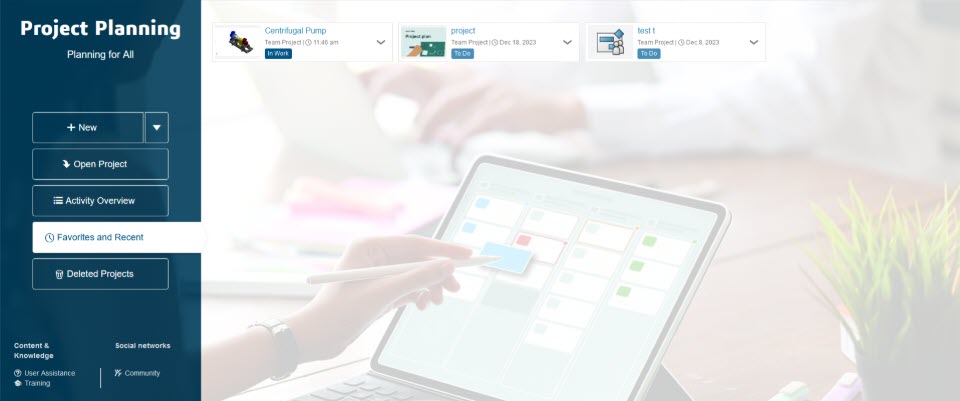
Project planner is a tool that can be used to plan your activities around a project & can help you manage them better, providing a holistic idea to the top level management or senior management a better idea as to how the project is doing, what’s the schedule like, who are involved in what task, what are the key milestones, Gantt charts, Infographics and a lot more.
- Why 3DEXPRIENCE Project Planner?
Unlike other standalone tools 3DEXPRIENCE Project Planner provides you connectivity to your 3D CAD data. Project managers can assign tasks & designs can update the task with a simple interface within SolidWorks.
The main highlight of this is that you have the ability to add attachments to individual tasks & task updating does not involve logging in to a separate task management system/excel.
Manual excels are not the right way to do it, with automation Project planner updates the Gantt-chart automatically reducing the need to updating all the dependencies manually.
- Who is the 3DEXPRIENCE Project Planner for?
3DEXPRIENCE Project Planner is for individuals who need to collaborate across disciplines with full flexibility and traceability to define and develop innovative products. At the same time maintaining reference of tasks to CAD Data under a Single Platform.
Clarity & Collaboration with the added benefit of CAD-Integration. The new age normal for project planning.
- Value Propositions: –
- Multi – Discipline Collaboration
- Traceability
- User Friendly
- Project Summaries
- Resource Allocation
- Dependencies
- Nested Projects
- View updates on smartphone
- Notification alerts
- CAD References
Can function as a Single platform for all your needs – 3D CAD, Collaboration, Project planning, Task allocation, Resource planning.
- How to use: –
With the easy-to-use user interface of the 3DEXPRIENCE Platform, users don’t need much time to figure out how to use this application. For someone who is familiar with the 3DEXPERIENCE platform, becoming accustomed to 3DEXPRIENCE Project Planner even sooner.
Let’s see a short video on how to create a task under a project in real time.
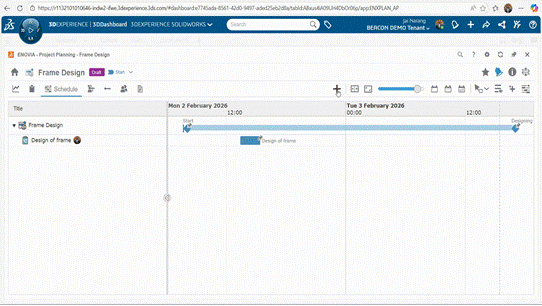
Wow – that was quick & easy under a minute!
Tips & Tricks
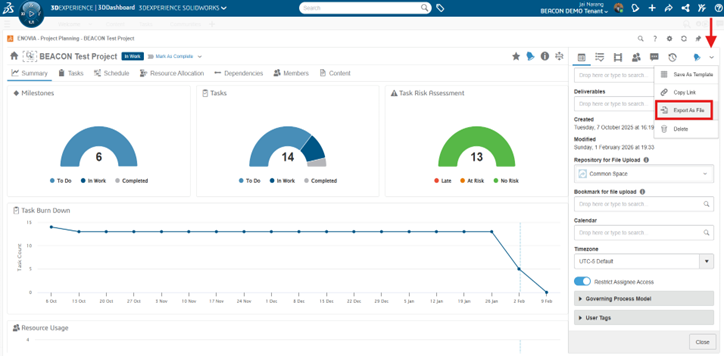
- 1. Update projects via CSV: Projects are being updated with the help of CSV files.
- A) Download the CSV file for the project.
- B)Make the necessary changes in the CSV.
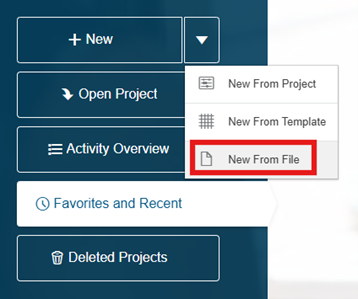
- C)Proceed to create a New Project àFrom File àSelect the updated file à Make sure that you have “update existing project” option checked à Click Import.
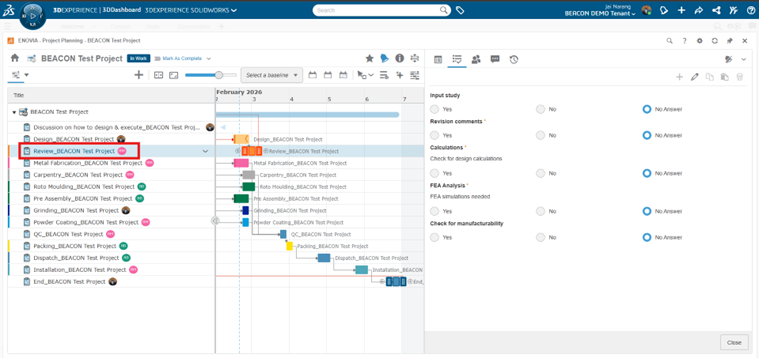
2. Add checklists to tasks: Task assignments can include checklists that users need to follow. We have added checklist items for the task that the assignee needs to follow.
- Next Steps:
- Check out this short video on the product to have a better understanding of 3DEXPRIENCE Project Planner.
- Contact us at support.mumbai@beacon-india.com to schedule a demonstration!
Guest Post by Jai Narang, Application Engineer, BEACON India – SOLIDWORKS VAR