We all know, SOLIDWORKS VISUALIZE is a rendering tools, which allows you to create life-like realistic rendered images, videos, interactive content and many more. Now, imagine a scenario wherein you have to create renders of multiple models within a limited time period. The challenge faced in such situation is that once you start a render output on our machine, you cannot start working on another project till that render is completed. In such situations, Visualize Boost comes to your help.
VISUALIZE BOOST allows you to transfer your rendering job to a different system(s), utilizing their resources, to free up your system for further work. With VISUALIZE BOOST, your rendering happens in the background on other machines and you can continue working on your machine. It allows you to utilize the CPUs and GPUs of multiple machines to render a single project, reducing your render time for any complex renders.
Let’s see how you can configure VISUALIZE BOOST:
1. Every license of VISUALIZE Professional includes one VISUALIZE BOOST license. Install the app on Coordinator system you want to transfer render to and launch the app. You will see a window as seen below:
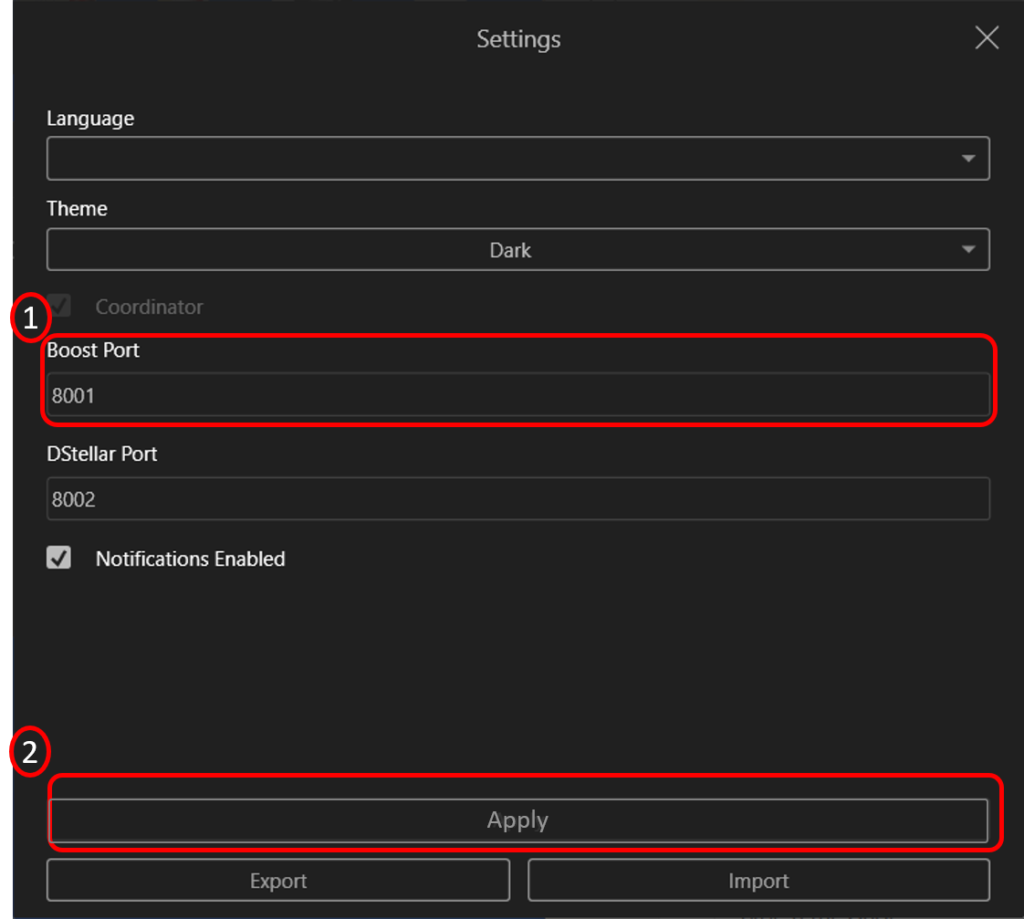
2. In the dialogue box above, select the required Language, Theme and note the Boost Port. Then click ‘Apply’.
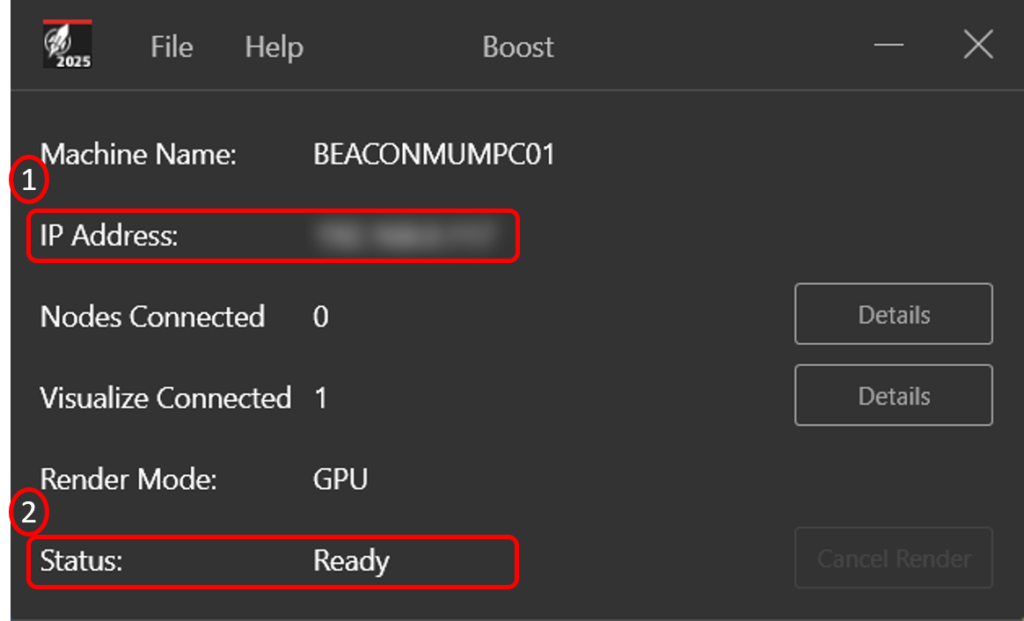
3. The VISUALIZE BOOST window opens displaying the Information and Status as ‘Ready’. Note the IP Address of the coordinator system.
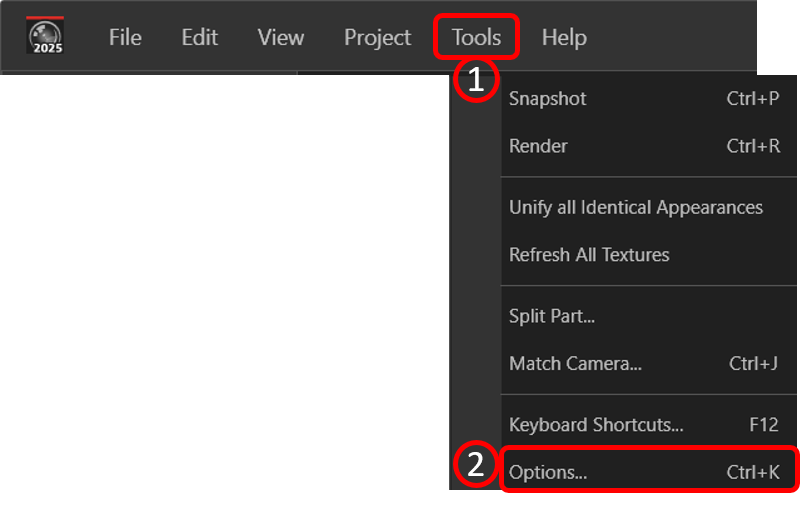
4. In your system go to the Tools > Options.
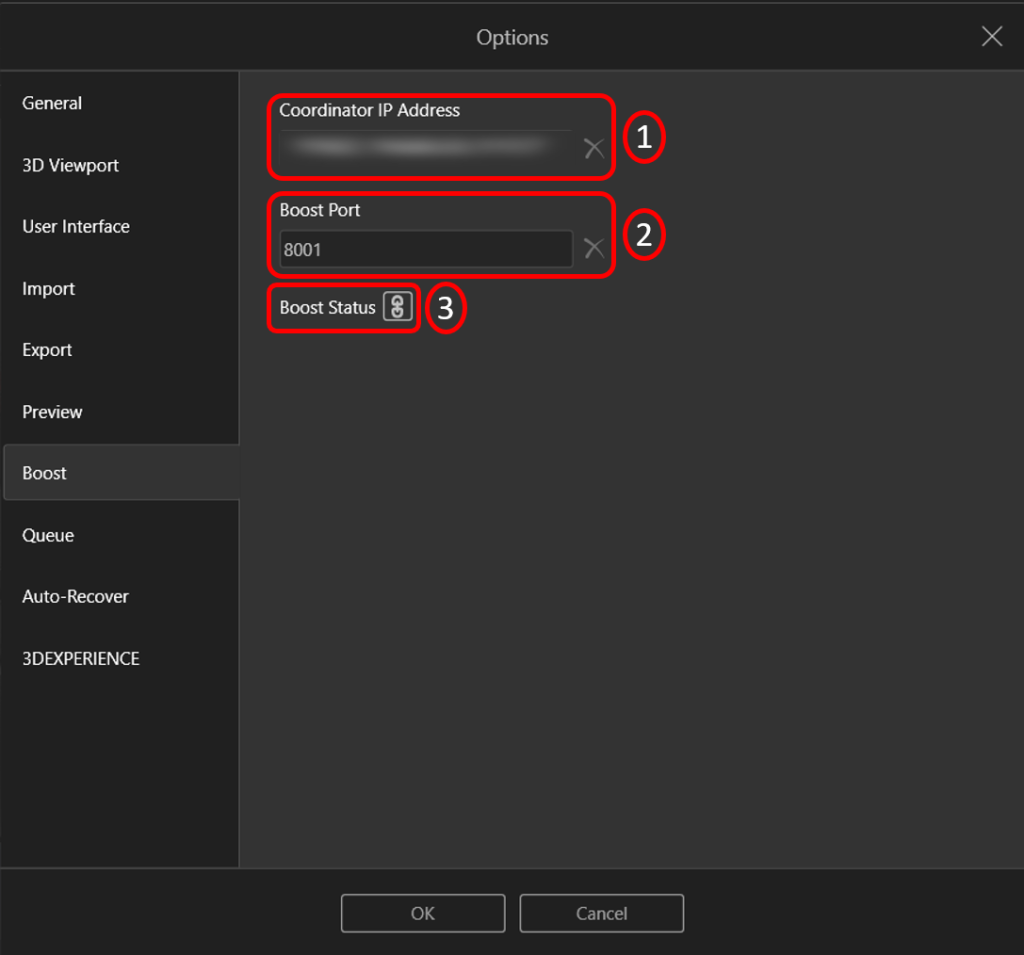
5. In the Boost tab of the Options manager, Input the IP Address of the coordinator system and Boost Port that we had noted earlier. Then click to connect to the coordinator system.
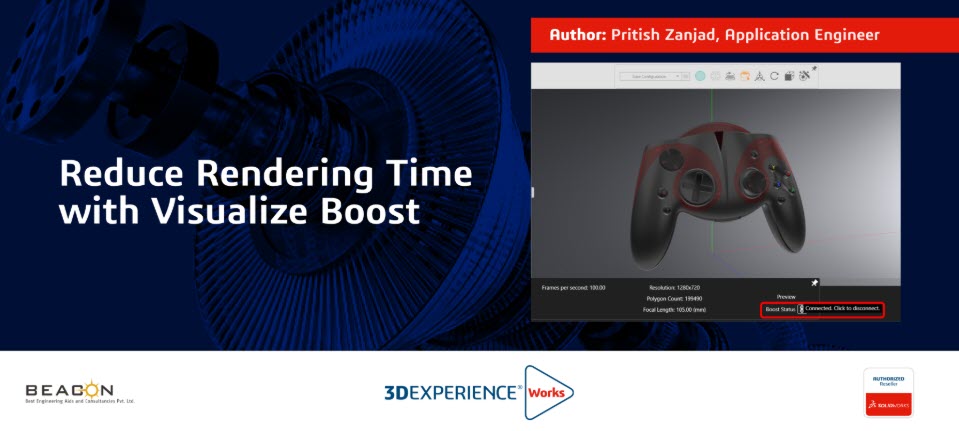
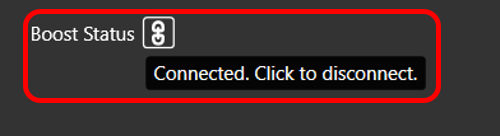
6. The system is now connected and the same can be seen in the information tab of the VISUALIZE window.
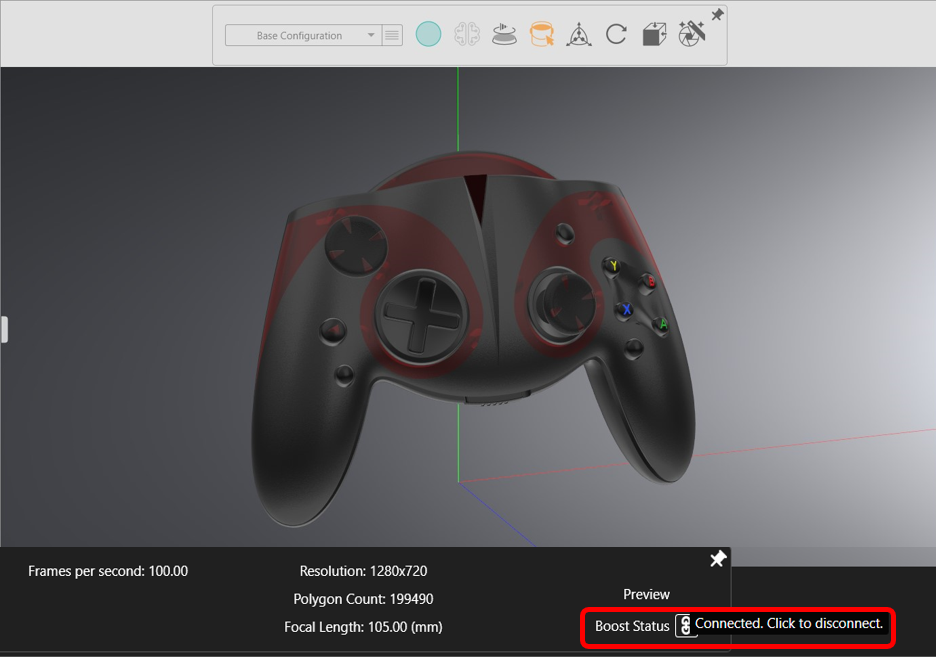
7. Now, when you give the render output, the rendering will take place on the coordinator system and you can continue to work on your system.
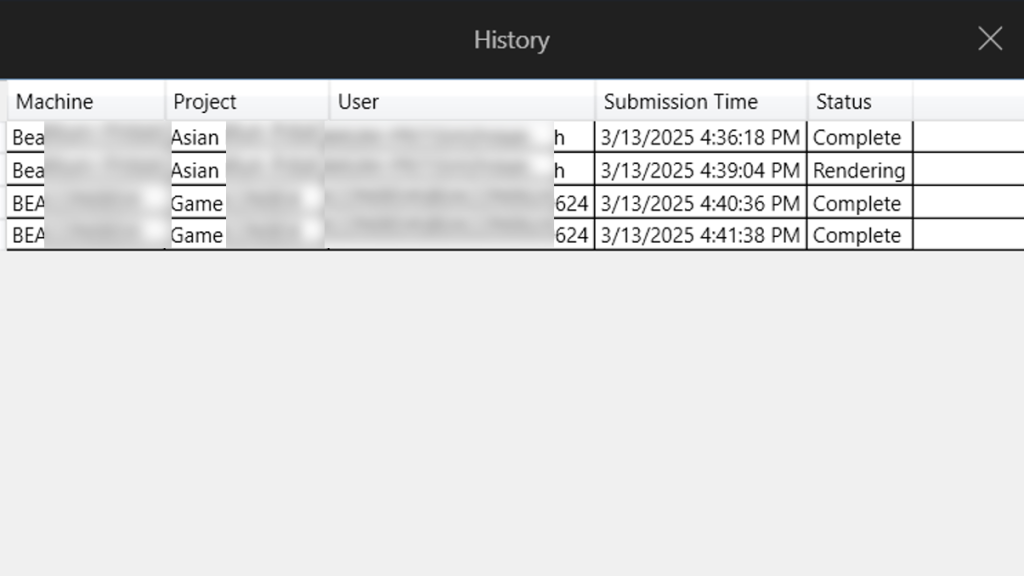
8. Multiple renders can be sent from different systems and a list of all the renders on the coordinator system can be seen.
GUEST POST BY BEACON India – SOLIDWORKS VAR
Author: Pritish Zanjad, Application Engineer, BEACON India
We Urge You To Call BEACON India team For Any Doubts & Clarifications That You May Have. We Are Eager to Talk To You
Call Us: +91 7406663589