Guest Post by Ritesh Kumar, Application Engineer, BEACON India
Save Time by Exporting Multiple Files Automatically
Do you frequently convert SOLIDWORKS parts, assemblies, and drawings into formats such as PDF, STEP, IGES, DXF, or STL? Instead of opening each file individually, SOLIDWORKS Task Scheduler allows you to automate batch exports with just a few clicks.
Whether you’re preparing files for manufacturing, collaborating with suppliers, or creating documentation, Task Scheduler helps improve efficiency while reducing repetitive work.
What is SOLIDWORKS Task Scheduler?
SOLIDWORKS Task Scheduler is a built-in utility designed to automate repetitive tasks. The Export Files feature enables users to convert multiple SOLIDWORKS files into various neutral formats in a single operation.
Supported Export Formats
The Export Files task supports exporting to:
- STEP (.stp/.step)
- IGES (.igs)
- Parasolid (.x_t)
- ACIS (.sat)
- STL
- DXF / DWG (Drawings)
- JPEG, TIFF, PNG
Key Benefits
- Batch export hundreds of files simultaneously
- Eliminate repetitive manual work
- Schedule exports during off-hours
- Ensure consistent export settings
- Reduce human errors
- Improve engineering productivity
Common Applications
- Share STEP files with customers and suppliers.
- Generate PDF drawing packages for production.
- Export DXF files for laser cutting and CNC machining.
- Create STL files for 3D printing.
- Archive projects in neutral CAD formats.
Step-by-Step Workflow
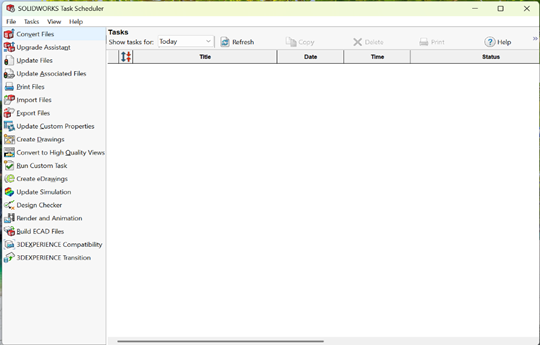
Step 1 – Open Task Scheduler
Launch SOLIDWORKS Task Scheduler from the Windows Start Menu under SOLIDWORKS Tools.
Step 2 – Select Export Files
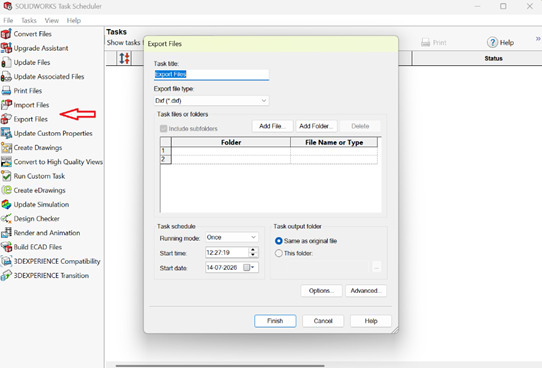
Choose Export Files from the list of available tasks.
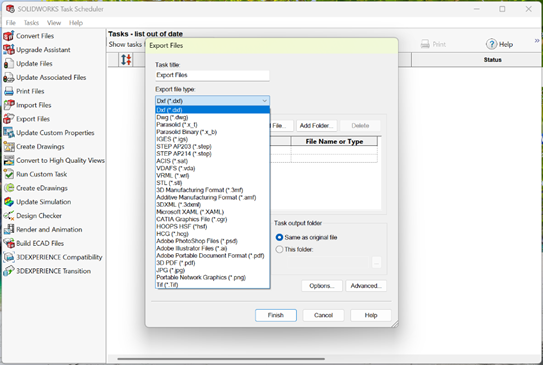
Step 3 – Choose Export Format
Select the required output format such as PDF, STEP, DXF, IGES, or STL.
Step 4 – Select Files or Folder
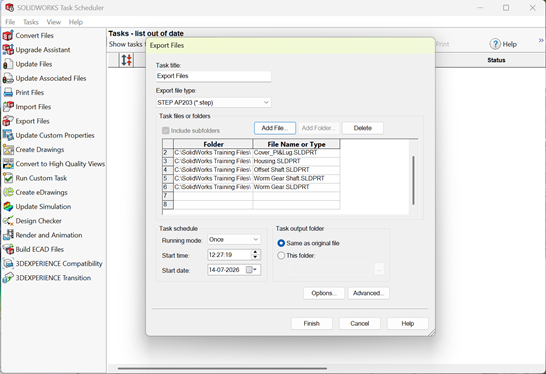
Browse and select individual files or an entire project folder. Subfolders can also be included.
Step 6 – Run or Schedule
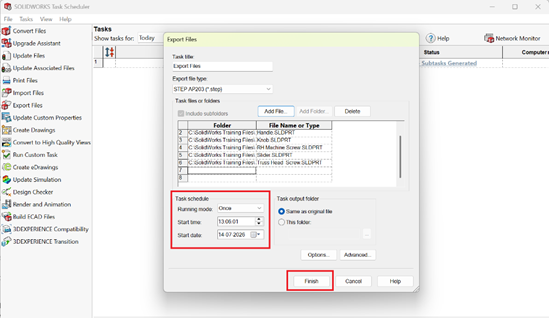
Execute the task immediately or schedule it for a later date and time.
Step 7 – Review Results
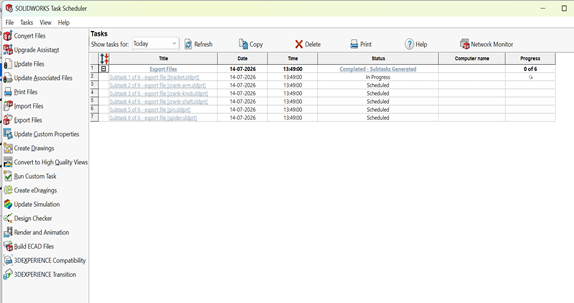
After completion, review the export log to verify successful file generation and identify any warnings.
Productivity Tip
Instead of waiting while hundreds of files are converted, schedule the export task to run overnight. By the next morning, all your deliverables will be ready, allowing you to focus on design and engineering tasks.
Conclusion
The Export Files feature in SOLIDWORKS Task Scheduler is a simple yet powerful automation tool that can significantly reduce repetitive work and improve workflow efficiency. Make it a part of your daily engineering process to save time, enhance consistency, and increase productivity
Guest Post by
Ritesh Kumar, Application Engineer, BEACON India