Guest Post by: Kushal Patil, Application Engineer – Subscription, BEACON India
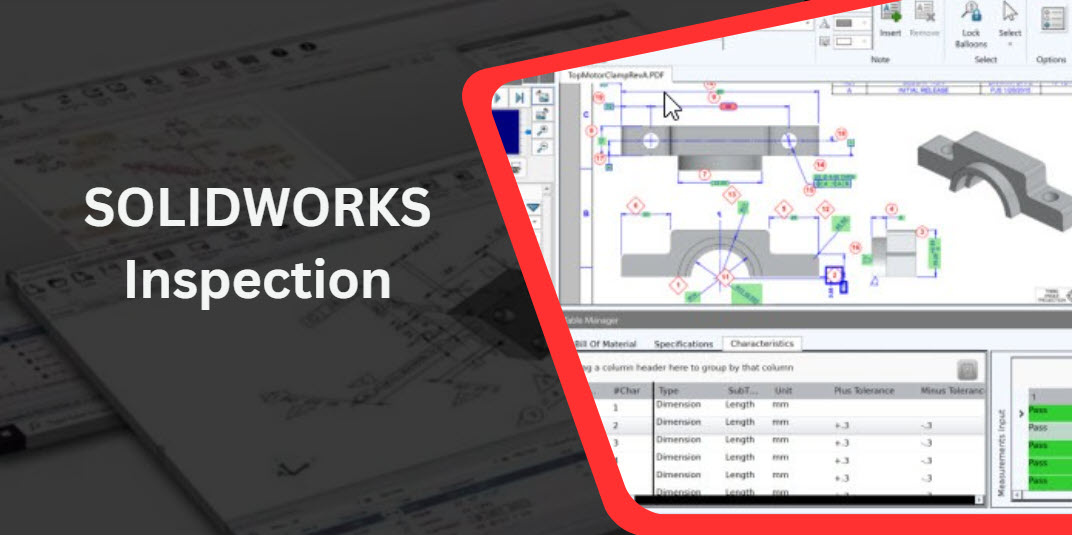
SOLIDWORKS Inspection is a quality-documentation tool that automates ballooning
drawings and First Article Inspection (FAI) reports (e.g., AS9102, PPAP). It reads
dimensions and GD&T from 2D drawings (PDF/DWG/DXF) and 3D models (with PMI),
builds a Bill of Characteristics, and exports Excel/PDF reports – dramatically cutting the
time and error risk compared to manual methods.
What is SOLIDWORKS Inspection?
SOLIDWORKS Inspection is a standalone app and an add-in for SOLIDWORKS CAD that
creates inspection documentation such as ballooned drawings and inspection reports
(AS9102, PPAP, custom templates). You can use it without being a CAD power user, simply
open a PDF/TIFF/DWG/DXF drawing (or a 3D CAD file with PMI), let the software
extract characteristics, and export your Excel/PDF reports.
Why do organizations use it?
- Speed: Reduce creation time for FAI/In-process inspection documents from hours to
minutes. (Auto-ballooning + auto data extraction) - Accuracy: Eliminate copy-paste and manual typing errors using OCR/PMI extraction
and controlled templates. - Compliance: Produce AS9102 (aerospace) and PPAP-style forms that align with
customer/industry standards (AS9102 Rev B and C supported in recent releases). - Flexibility: Works with PDF/TIFF, DWG/DXF, and 3D CAD (SOLIDWORKS,
CATIA, Creo, NX, etc.). - Traceability: Balloon numbers map to report line items; revisions can be compared to
highlight changes.
When should you use it?
- First Article Inspections (FAI): Before production ramp, to validate first runs
(AS9102). - In-Process & Final QC: IPQC/FQC sampling and production checks,auto-generated
check sheets and filtered exports. - Supplier Qualification: Standardize documentation and reduce back-and-forth with
vendors. - Revisions/Engineering Change: Quickly see what changed and update reports.
How does it work?
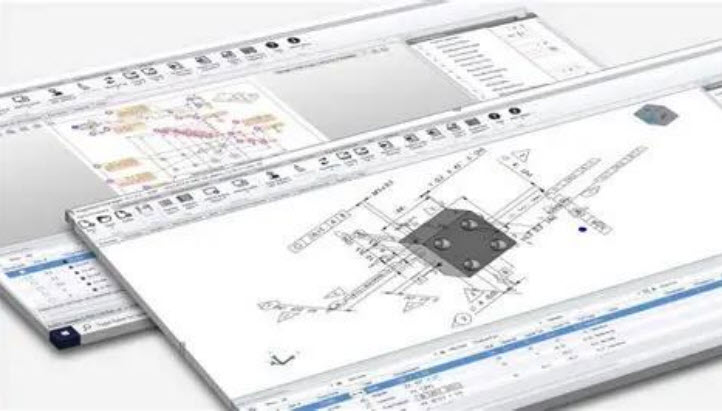
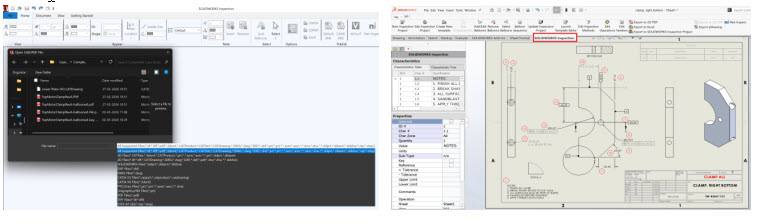
1) Open the Project
- Standalone: Import a PDF/TIFF/DWG/DXF or 3D CAD file with PMI
(SOLIDWORKS, CATIA V5, Creo, NX, etc.). - Add-in: Open the native SLDDRW/SLDPRT/SLDASM inside SOLIDWORKS and
launch the Inspection tab.
2) Extract Characteristics (The ‘magic’ part)
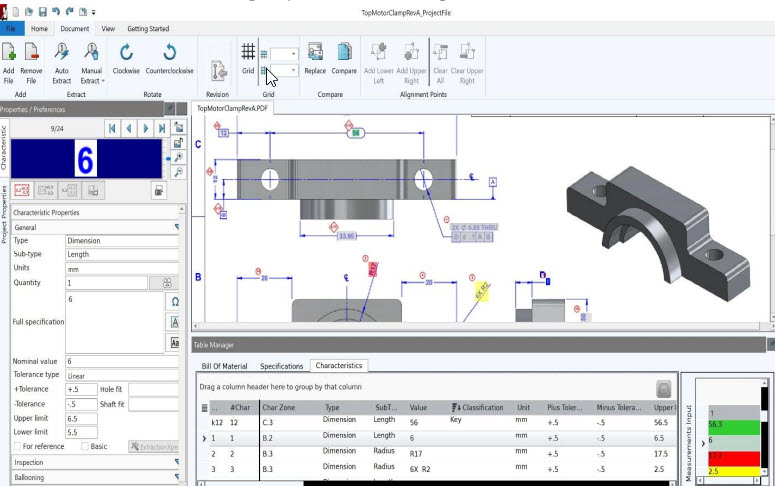
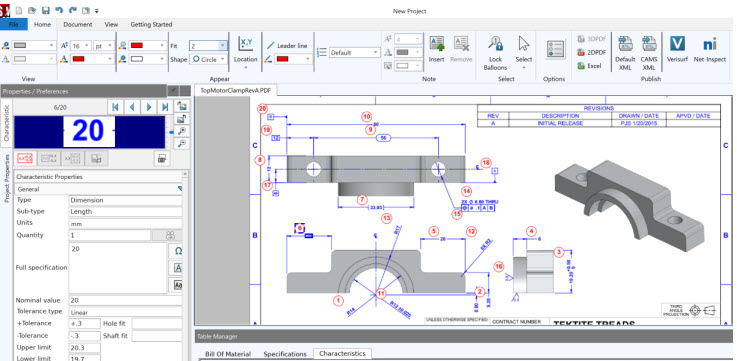
- Use Auto Extract/Smart Extract to read dimensions, tolerances, and GD&T
automatically. - For PDFs/TIFFs, the integrated OCR identifies values (nominal, ± tol, symbol type).
- You can also manually balloon specific items or adjust classification
(Key/Critical/etc.).
3) Classify & Filter
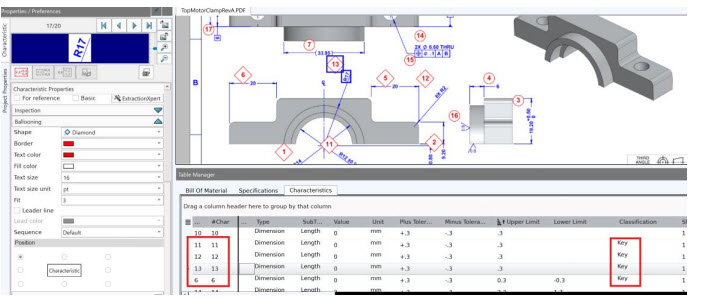
- Mark Key, Major/Minor, or custom categories (e.g., Layout, IPQC, FQC).
- Filter to show only what a team needs; export filtered reports.
4) Export Reports
- Output Excel or PDF using AS9102 (Forms 1–3), PPAP-style, or custom templates.

5) SW Inspection Professional – Enter Results & Import CMM Data
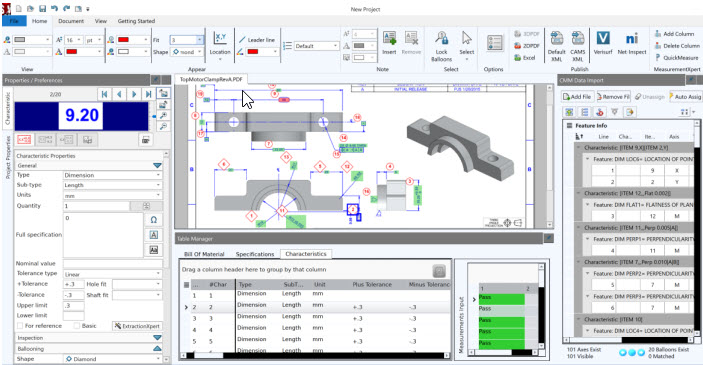
- Inspection Professional lets you manually enter measured values or import CMM data to auto-flag Pass/Fail.
Common Questions (from non-CAD users)
Q1. Do I need SOLIDWORKS CAD to use it?
No. Use Inspection Standalone with PDFs or DWG/DXF. The Add-in is only if you already
work inside SOLIDWORKS CAD.
Q2. Can it read my supplier’s PDFs?
Yes. That’s a core use case. OCR extracts text/tolerances directly from PDFs/TIFFs.
Q3. Can I generate only Key characteristics for the shop floor?
Yes – filter by classification and export.
Q4. What about aerospace FAI?
Use the built-in AS9102 templates. For Rev C, ensure you’re on Inspection 2025+.
Q5. Can I import CMM results?
Yes (Professional): import CSV/TXT; the tool will flag Pass/Fail per tolerance.
Practical Walkthrough (Non-CAD Friendly)
- Start a Project (Standalone) → drag-and-drop your PDF.
- Click Auto Extract → balloons and a characteristics list are built for you.
- Tag Key/Critical items → Filter the list.
- Export Excel/PDF with your company logo/template.
- In Professional, add measured values or import CMM results → Pass/Fail is
automatic.
Do’s and Don’ts (to Avoid Rework)
- Do standardize your templates (logos, column names, tolerances).
- Do set classification rules (Key/Major/Minor) for consistent filtering.
- Do update to a version that supports your required standard (e.g., AS9102 Rev C
needs 2025+). - Don’t expect filtered exports to renumber balloons – that’s not supported; duplicate
the project and remove unwanted characteristics if you must restart numbering.
For more info on SOLIDWORKS Inspection & Overview (official product page):
https://www.solidworks.com/product/solidworks-inspection
Final Takeaway
SOLIDWORKS Inspection is not just for CAD users. It’s a quality & compliance
accelerator, pull in drawings or 3D models, auto-extract characteristics, classify, and
export standards-compliant reports. You’ll ship faster, reduce mistakes, and keep auditors
and customers happy.
Guest Post by: Kushal Patil, Application Engineer – Subscription, BEACON India